How to Integrate Zoho with Shopify: A Step-by-Step Guide
Running Zoho Inventory and Shopify as separate systems works fine at low order volume. It stops working the moment a business scales. Stock counts drift apart. Orders sit unsynced. Someone ends up manually copying numbers between two dashboards, and that person eventually makes a mistake.
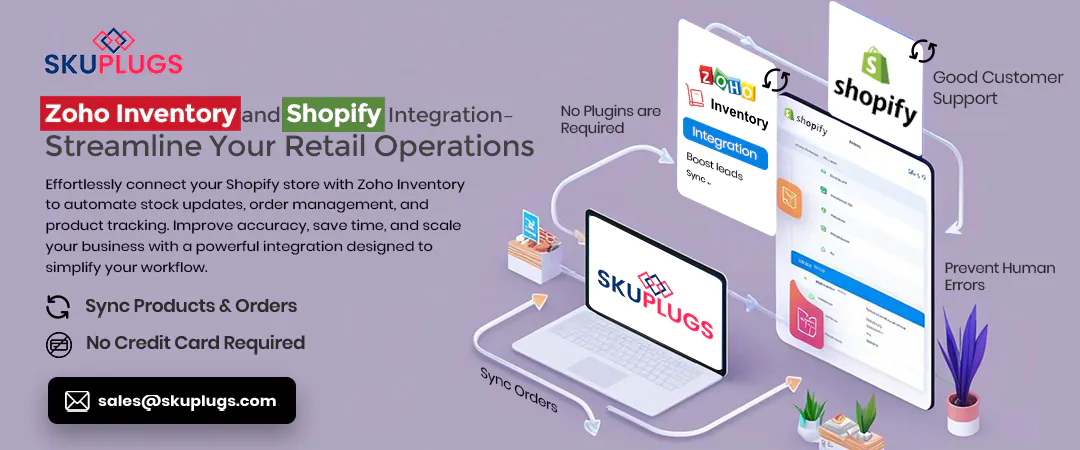
Zoho Inventory to Shopify integration through SKUPlugs removes that manual layer entirely. This guide walks through the full setup process — from connecting both accounts to configuring the sync rules that keep inventory, orders, and product data aligned across both platforms.
If you’re still deciding whether integration is the right move, our Zoho Inventory vs. Shopify comparison breaks down where each platform fits before you commit to connecting them.
Before You Start
A few things need to be in place before beginning the integration:
- An active Zoho Inventory account with admin-level access
- A Shopify store, live or in development, with store owner or staff permissions
- A SKUPlugs account — a free 15-day trial covers the full setup process
- A rough sense of your product catalog structure, particularly if you use variants, bundles, or multiple warehouses
Having these ready before starting avoids interruptions partway through setup.
Step 1: Connect Your Zoho Inventory and Shopify Accounts
Log in to SKUPlugs and select Zoho Inventory and Shopify as the two platforms to connect. Each platform will prompt an authorization step — Zoho and Shopify both use secure OAuth-based login, so no API keys need to be copied or entered manually.
Once both accounts authorize the connection, SKUPlugs establishes the middleware link between them. This connection stays active continuously, which is what allows near real-time syncing rather than scheduled batch updates.
Step 2: Match Existing Products to Avoid Duplicates
If either platform already has products listed, this step matters more than it might seem. SKUPlugs offers two ways to match existing catalog items:
- Automatic SKU matching — pairs products with identical SKUs across both platforms
- Manual mapping — for catalogs where SKUs differ, product names are close but not identical, or naming conventions were never standardized
Skipping this step on an established catalog usually creates duplicate listings on one platform, which then need to be cleaned up manually later. Taking the time here upfront saves that cleanup entirely.
If you’re moving an entire product catalog from Shopify into Zoho Inventory for the first time, rather than just connecting two existing systems, see our dedicated Shopify to Zoho Inventory migration guide instead.
Step 3: Configure Sync Rules
With products matched, the next step is deciding how data should flow between the two systems. Key settings include:
- Pricing master — choose whether Zoho Inventory or Shopify holds the authoritative price, with the other platform following its lead
- Sync direction — most businesses sync inventory and product data from Zoho to Shopify, and orders from Shopify back to Zoho, though this can be adjusted
- Buffer stock thresholds — set a minimum stock level below which Shopify stops accepting orders, protecting against overselling the last units of a product
- Sync frequency — near-instant for most events, though some businesses prefer scheduled intervals for lower-priority data like descriptions or images
These rules only need to be set once. They apply automatically to every future sync event.
Step 4: Set Up Multi-Warehouse Routing (If Applicable)
Retailers operating from a single location can skip this step. For businesses holding stock across multiple warehouses, this is where the integration earns its keep.
SKUPlugs allows specific warehouses in Zoho Inventory to be mapped to specific Shopify locations. This means an order can be routed to whichever warehouse holds the relevant stock closest to the customer, rather than being fulfilled from a single default location regardless of where the inventory actually sits.
Custom field mapping is available here too. If your Zoho catalog uses fields that don’t exist by default in Shopify, or vice versa, SKUPlugs lets you define how those fields correspond, so nothing gets lost or misformatted in the sync.
Step 5: Test the Sync Before Going Live
Before relying on the integration for real orders, run a test cycle:
- Update a stock quantity in Zoho Inventory and confirm it appears correctly on the matching Shopify product within moments
- Place a small test order on Shopify and confirm it appears as a sales order in Zoho Inventory, with the correct product, quantity, and customer details
- Check that a price change made in the master pricing system reflects correctly on the other platform and set up Zoho Inventory and Shopify sync with SKUPlugs
Catching a mapping error during a test order costs nothing. Catching it after a real customer order has been placed is a different situation entirely.
Common Setup Issues and How to Fix Them
Duplicate products after connecting
Usually caused by skipping the SKU matching step, or SKUs that don’t match exactly due to formatting differences (extra spaces, inconsistent capitalization). Re-run the matching process manually for the affected products.
Stock levels not updating
Check that the correct warehouse is mapped to the correct Shopify location. This is the most common cause when sync appears to be “on” but numbers still look wrong.
Orders not appearing in Zoho
Confirm the sync direction settings from Step 3 — occasionally this gets set to one-directional during initial setup and needs adjusting.
Pricing conflicts
Happens when both platforms are set as a pricing source simultaneously. Only one platform should hold master pricing at a time.
Most setup issues trace back to a configuration step rather than a fault in the integration itself, which is why testing before going fully live matters.
After Setup: What to Expect
Once live, the integration runs in the background without requiring daily attention. Stock sold on Shopify reduces in Zoho Inventory immediately. Orders route to Zoho Inventory for fulfillment automatically. Product updates made in either system — new items, price changes, description edits — reflect on the other platform without a manual push.
Support remains available afterward for anything that needs adjusting, particularly for businesses that add a new warehouse, launch an additional Shopify store, or change how their catalog is structured. See how this played out for an existing retailer in our Zoho Inventory and Shopify integration case study.
FAQs
Yes. Zoho Inventory can be connected with Shopify to synchronize products, inventory levels, orders, and other important data between the two platforms.
You can connect Zoho Inventory and Shopify through an integration platform that supports automated inventory synchronization. Once connected, inventory updates can be transferred between the systems without requiring manual updates.
Yes. Shopify orders can be automatically transferred to Zoho Inventory. This helps keep order information and inventory records up to date across both platforms.
The update frequency depends on the integration method and synchronization settings you use. Automated integrations can regularly sync inventory changes to help keep Shopify stock levels accurate.
The easiest approach is to use a no-code integration solution that connects the two platforms and handles product, inventory, and order synchronization automatically. This avoids the need for custom development or repeated manual data entry.
